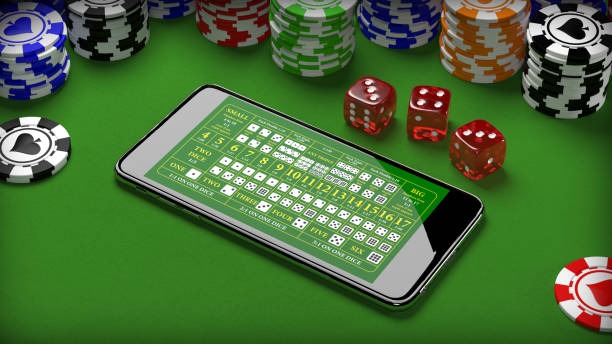
The ac77 app experience runs through your mobile browser — open the current domain, sign in with your account credentials, and you reach the full lobby including sports markets, live tables and slot rooms. Access depends on local law and is available in eligible regions; check the domain shown in your account confirmation for the current active address.
Before signing in on any device, four checks keep your ac77 account safe. Confirming the correct domain, reviewing published device guidance, protecting your login credentials and knowing the account recovery path are all steps you can complete without contacting support.
Confirm the Domain
Always open ac77 through the address shown in your account confirmation message. A mistyped or shared link may take you to a different page. Bookmark the verified address from your confirmation email and use that bookmark each time you return on mobile.
Review Device Guidance
The help section inside your account lists the browsers and screen sizes where the mobile layout is confirmed to render correctly. Check that page first if the lobby display looks off on your device — it shows what is currently supported without you needing to contact the support team.
Protect Your Credentials
Your ac77 login is tied to your registered mobile number and password. Do not share either. If you use a shared device, log out after each session. The account settings page lets you update your password directly — no support request needed for a routine credential change.
Use the Published Recovery Path
If you cannot access your account on mobile, use the password recovery link on the login screen — it sends a reset to your registered number. For wallet verification issues specifically linked to JazzCash or Easypaisa, the in-app help route is faster than email.
APP HELP ROUTES
Help Paths for ac77 App Users
Three support routes are available when you run into trouble with mobile access on ac77. Each route covers a different kind of issue — live chat handles login and display problems quickly, email works for account documentation questions, and the install guide inside your account covers browser setup and wallet linking for JazzCash or Easypaisa. Check the help section in your account dashboard first; many mobile access questions are answered there without needing to open a ticket.
App Support Chat
The live chat icon appears on the login page and inside your account dashboard. Use it for immediate questions about mobile display, account access or login errors. The chat queue is shown in real time so you know how long to expect before an agent responds to your session.
Email Support
For account documentation, wallet name verification or questions about your JazzCash or Easypaisa deposit records, email is the right route. Include your registered mobile number in the message so the team can pull your account without a back-and-forth. Response times are shown on the contact page.
In-Account Help Section
The help section inside your ac77 account covers browser compatibility, screen layout adjustments and wallet linking steps for Easypaisa and JazzCash. It is updated when the mobile layout changes, so it reflects the current state of the app experience rather than an older printed guide.
DEVICE COMPATIBILITY CHECK
Which Devices Work With the ac77 App
Mobile access on ac77 is browser-based, which means compatibility depends on the browser you use and the screen size of your device rather than an operating system version. The four points below cover what to check before your first mobile session. If your device is not listed in the in-account device guidance, start with the browser check — that resolves the majority of display issues without any changes to your account or settings.
Browser Access
Open ac77 in a current-version browser on your phone. Older browser builds may not render the lobby layout or the wallet deposit fields correctly. The in-account help page lists the browser versions confirmed to work with the current mobile layout.
Screen Layout
The ac77 mobile layout adjusts to portrait and landscape orientations. If the navigation bar or game tiles appear cut off, rotate your screen or try a different browser. The layout is not dependent on screen resolution alone — browser zoom settings also affect how elements sit on the page.
Account Requirements
A fully verified ac77 account is required to access the deposit wallet, sports markets and live casino tables from mobile. If your account is pending verification, the lobby loads in restricted mode — complete verification through the account settings page to unlock full access.
Wallet Linking on Mobile
JazzCash and Easypaisa wallet linking is done through the deposit section of your account, accessible from mobile the same way as on desktop. Enter the number registered with your wallet exactly as it appears in your JazzCash or Easypaisa app — mismatches delay verification.
Currently Supported Devices
The list of confirmed supported devices is maintained in the device guidance page inside your account. It is updated when the mobile layout changes. Check that page rather than relying on general Android or iOS compatibility assumptions — the list reflects the actual current state.
THREE STEPS TO START
Mobile Access in 3 Steps
Getting onto ac77 from your phone does not require a store download or an APK file. The full account experience — sports markets including cricket and football, live tables like Baccarat Casino24 and Roulette Nightfire, and your wallet deposit section — loads directly in your mobile browser. The steps below cover what a first-time mobile session looks like. Each step points to something you can verify yourself on screen without contacting support.
Open the Current Site
Navigate to the ac77 domain shown in your account confirmation message. Bookmark it immediately so you return to the correct address each time. Do not search for the domain — use the bookmarked link or the confirmation message link directly.
Check Browser Compatibility
Before signing in, confirm your browser version matches the supported list in the in-account help section. If the page loads slowly or the layout breaks, switching to a supported browser resolves most display issues before you enter your credentials.
Sign In Securely
Enter your registered mobile number and password on the login screen. Use your own credentials only. After a successful sign-in, your account dashboard, wallet balance and the full lobby — including sports markets and casino categories — are available from the same mobile screen.
Link Your Wallet
If this is your first mobile deposit session, go to the deposit section and link your JazzCash or Easypaisa number. The field accepts the number exactly as registered in your wallet app. Once linked, deposit records appear in both your ac77 account and your JazzCash or Easypaisa transaction history.
MOBILE PAGE BEHAVIOUR
What the ac77 App Renders on Your Screen
The mobile browser version of ac77 renders the same account routes and lobby categories you see on desktop — without requiring a native app installation. Four aspects of the rendered page behaviour are worth knowing before your first mobile session. These cover how navigation works on a small screen, how your wallet balance appears, how game discovery is laid out and where the help section sits.
Responsive Navigation
The main navigation collapses into a menu icon on small screens. Tapping it shows sports markets, casino categories including live tables and slots, and your account wallet in a single scrollable list. Switching between cricket markets and a game like Teen Patti NightFire takes two taps from this menu.
Account Wallet on Mobile
Your wallet balance and deposit history are accessible from the account icon at the top of every page. JazzCash and Easypaisa deposit records appear here in the same format as your wallet app history, so you can cross-check a transaction without leaving the ac77 mobile page.
Game Discovery Rail
The lobby on mobile uses a horizontal scroll rail for game categories. Slot titles from Habanero, Pragmatic Play and PG Soft sit alongside live table tiles such as Baccarat Casino24 and Crash or Cash. Tap any tile to open the game directly in the browser without a redirect.
Help Section Access
The help section link appears in the footer on every mobile page and inside the account dashboard. It does not require a separate app or a new login. Device guidance, wallet linking steps and the support chat entry point are all on this single help page.
INSIDE THE MOBILE LAYOUT
Account Routes and Game Discovery on Mobile
The ac77 mobile layout is built around four main routes your account can reach from a phone browser: sports markets, casino lobby, wallet and help. Sports markets — cricket, football, kabaddi — load under the sportsbook tab and keep the same odds display format as desktop. The casino lobby groups titles by category: live tables, slots, crash games and table games.
APP ACCESS QUESTIONS
ac77 App — Questions We Get Asked
Questions about ac77 mobile access come up in a few consistent patterns — domain confirmation, browser choice, wallet linking and account recovery. The answers below cover the questions the support team sees most often from mobile users in Pakistan. If your question is not here, the in-account help section carries a fuller list updated to the current app state.
Do I need to download an app from the Google Play Store or App Store to use ac77 on mobile?
No store download is required. The ac77 mobile experience runs through your phone's browser. Open the domain from your account confirmation, sign in and the full lobby — sports markets, live tables, slots — is available without any installation step.
How do I find the correct ac77 domain to open on my phone?
The current active domain is shown in your account confirmation message. Bookmark it from there. Do not search for the domain through a general search engine — use the bookmarked link each time to make sure you reach the correct page.
The ac77 lobby looks broken on my phone screen. What should I check first?
Start with your browser version. Open the in-account help section, find the device guidance page and compare your browser against the supported list. Switching to a supported browser resolves most display issues. Also check that your browser zoom is set to the default level.
Can I link my JazzCash or Easypaisa wallet from the mobile app?
Yes. Open the deposit section inside your account on mobile, enter the mobile number registered with your JazzCash or Easypaisa account, and follow the on-screen fields. Once linked, deposit records appear in both your ac77 wallet history and your JazzCash or Easypaisa transaction list.
I cannot sign in to ac77 on my phone. How do I recover my account?
Use the password recovery link on the ac77 login screen. It sends a reset to your registered mobile number. If your registered number has changed, contact support through the email route with your account details — the team verifies identity before making number changes.
Does the ac77 mobile layout support cricket betting and live casino in the same session?
Yes. From your signed-in mobile session, the sports tab carries cricket markets including PSL fixtures, and the casino tab opens the full live table and slot lobby. Switching between them does not require a separate login — your account wallet balance stays the same across both sections.
 Casino / App